Guides6 min read
OBS Settings for Streaming: 2026 Setup Guide
Set up OBS Studio step by step: resolution, FPS, CBR, bitrate and audio for Twitch, Kick and YouTube, based on each platform's official docs.
À la carte
A well-configured OBS saves you hours and headaches. It's an a la carte piece, and we walk you through what each platform recommends for streaming.
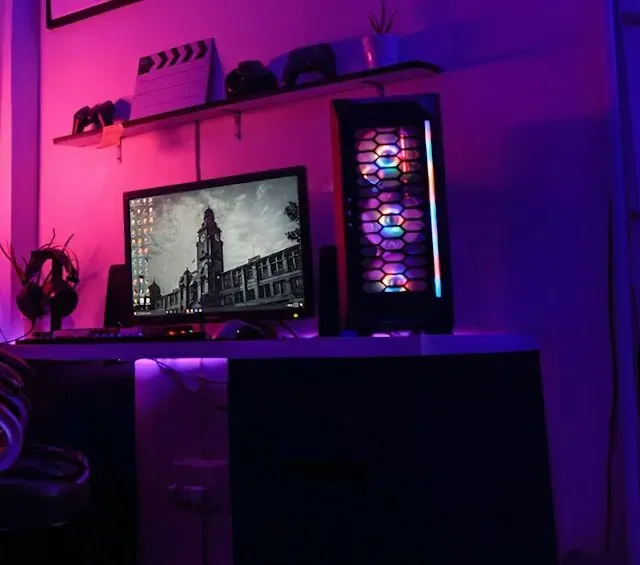
OBS setup for streamers is the work of getting OBS Studio ready to go live: scenes, sources, audio and video output tuned to your platform. At Epik Streamer it’s a standalone piece at $30, and it comes included in the Creator and Epik packs. Here we walk through what each part is and what Twitch, Kick and YouTube recommend.
OBS Studio is the software many streamers use to broadcast to Twitch, Kick and YouTube. It’s powerful, but the first time you open it there are a lot of options. A la carte setup makes sense if:
The service is OBS setup, one piece. This page doesn’t break it down beyond what’s published, because the detail depends on your platform, your hardware and your content. What is clear: it’s one piece, with one revision included; the Creator pack (a single platform) and the Epik pack (multiplatform) include it. Any other piece or format you didn’t order is treated as an additional service.
These are each platform’s starting values, and your connection has the final say: with an unstable upload, a lower, steady bitrate beats a high one that drops. If you want the step by step, read the guide on how to set up OBS Studio for streaming.
If you only need OBS, this piece is the direct route. If you also need graphics, look at the Creator pack, which includes it along with a logo, 5 overlays, 5 panels, a banner, 8 emotes and 6 badges, or the Epik pack for several platforms. To set up your graphics afterward, overlays and alerts are the pieces used most inside OBS. And if you’re unsure where to start streaming, the comparison of Twitch, Kick and YouTube helps.
Buy your OBS setup, tell us which platform you stream on and get your stream ready to go.
Data taken from each platform's official documentation.
OBS setup costs $30. The Creator pack includes it for one platform and the Epik pack includes it multiplatform.
Twitch recommends 6000 kbps for 1080p at 60 fps and 4500 kbps for 720p at 60 fps. Kick supports up to 8000 kbps. YouTube recommends 6 to 17 Mbps for 1080p at 60 fps with H.264. All of them ask for CBR.
It depends on the platform. Kick only supports H.264. YouTube publishes bitrate ranges for H.264 as well as AV1 and H.265. Tell us your platform and your hardware in the brief.
If you stream to several, say so in the brief. Also, the Epik pack includes multiplatform OBS setup, while the Creator pack includes it for just one.
Your complete brief, with your main platform, the games or content you stream and your schedule. Production and delivery start once the brief is complete and payment is made.
Payment is in full and direct on PayPal, at the time of purchase. There are no later charges.
Guides6 min read
Set up OBS Studio step by step: resolution, FPS, CBR, bitrate and audio for Twitch, Kick and YouTube, based on each platform's official docs.
Platforms6 min read
An honest Twitch vs Kick vs YouTube comparison: monetization requirements, sub revenue split, stream quality and clips, with official sources.
Pick your option, pay in full and securely on PayPal, and book a short call to complete your brief.